Home | How-To's / Other Home | MultiMC How-To | Rei's Minimap How-To | Epic Colonizer Setup How-To | Epic Colonizer 2 Setup How-To | Twitch Launcher How-To | Vanilla Launcher Profile How-To
This is a long but easy to follow how-to on getting a NON Feed-The-Beast modpack (SevTech Ages) installed and working in the Twitch Launcher.
Please be patient while this page loads the images.
THIS GUIDE MAY BECOME OUTDATED QUICKLY DUE TO TWITCH CHANGING STUFF! BEWARE!
This guide guides the entire process of installing the SevTech: Ages Modpack onto the twitch launcher.
It should be fairly obvious how to apply this guide to other modpacks.
If you have used Twitch with modpacks before then some of these steps might be redundant or skipped.
Sorry if the screenshots are real big, you can use CTRL- to zoom out, and CTRL+ or CTRL= to zoom in.
It might be easier to use the page up and page down keys to scroll.
I tried the page on my phone and it did a decent enough job of changing the text size compared to the pictures lol.
To begin, download and install the twitch app. You may need to form a twitch profile if you haven't already.
Click here to download the desktop twitch app.
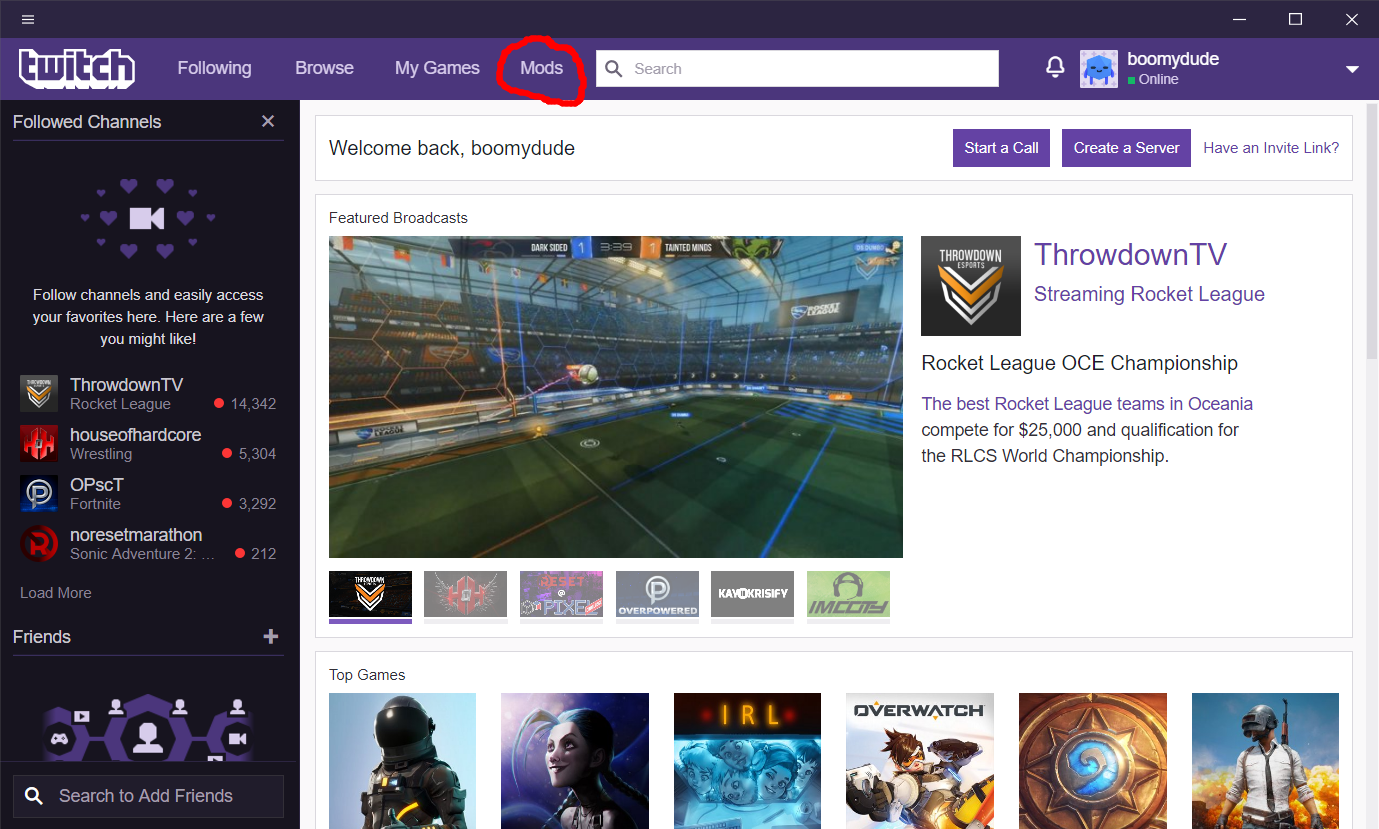
When you have it installed, logged in, and open, click the "Mods" button/tab.
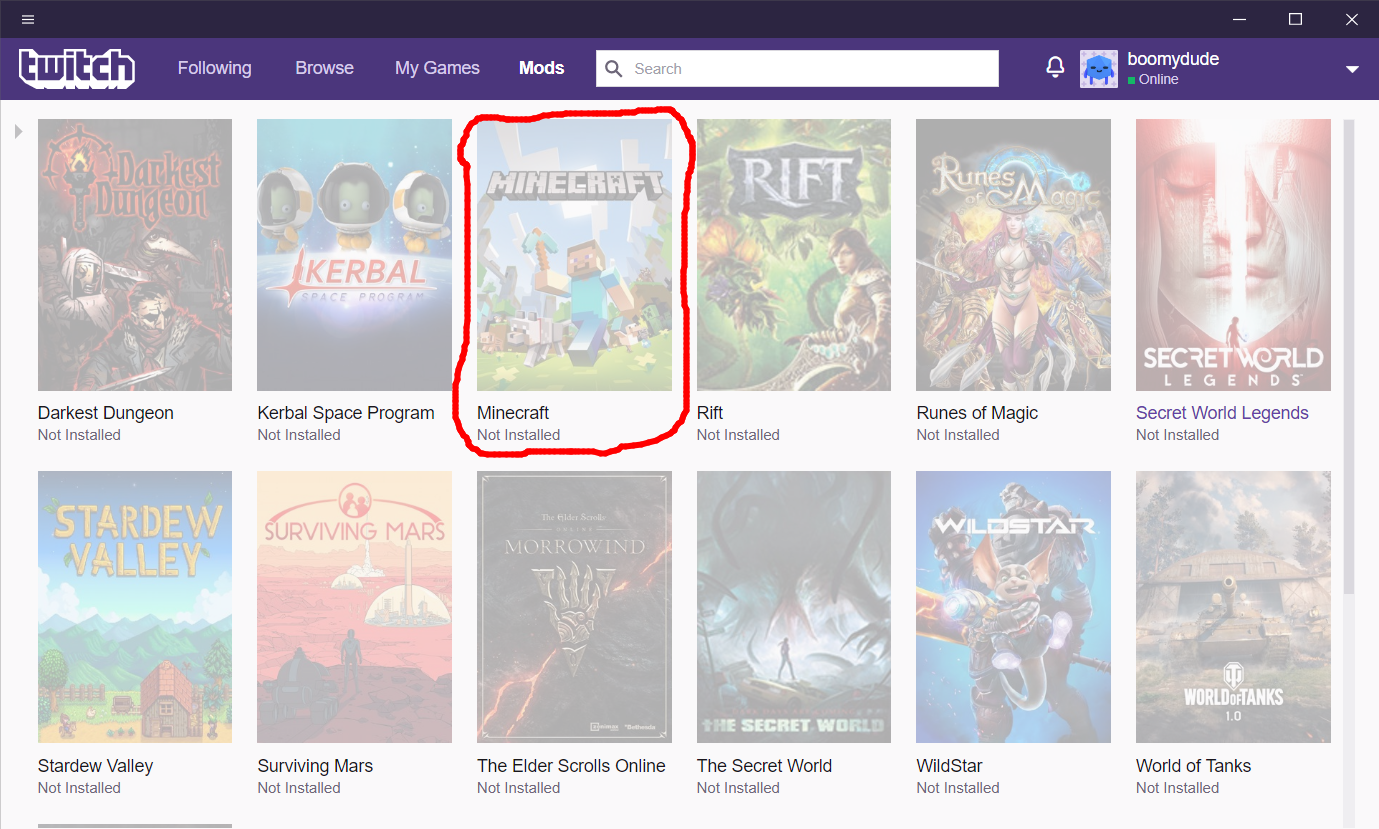
Next, click on Minecraft.
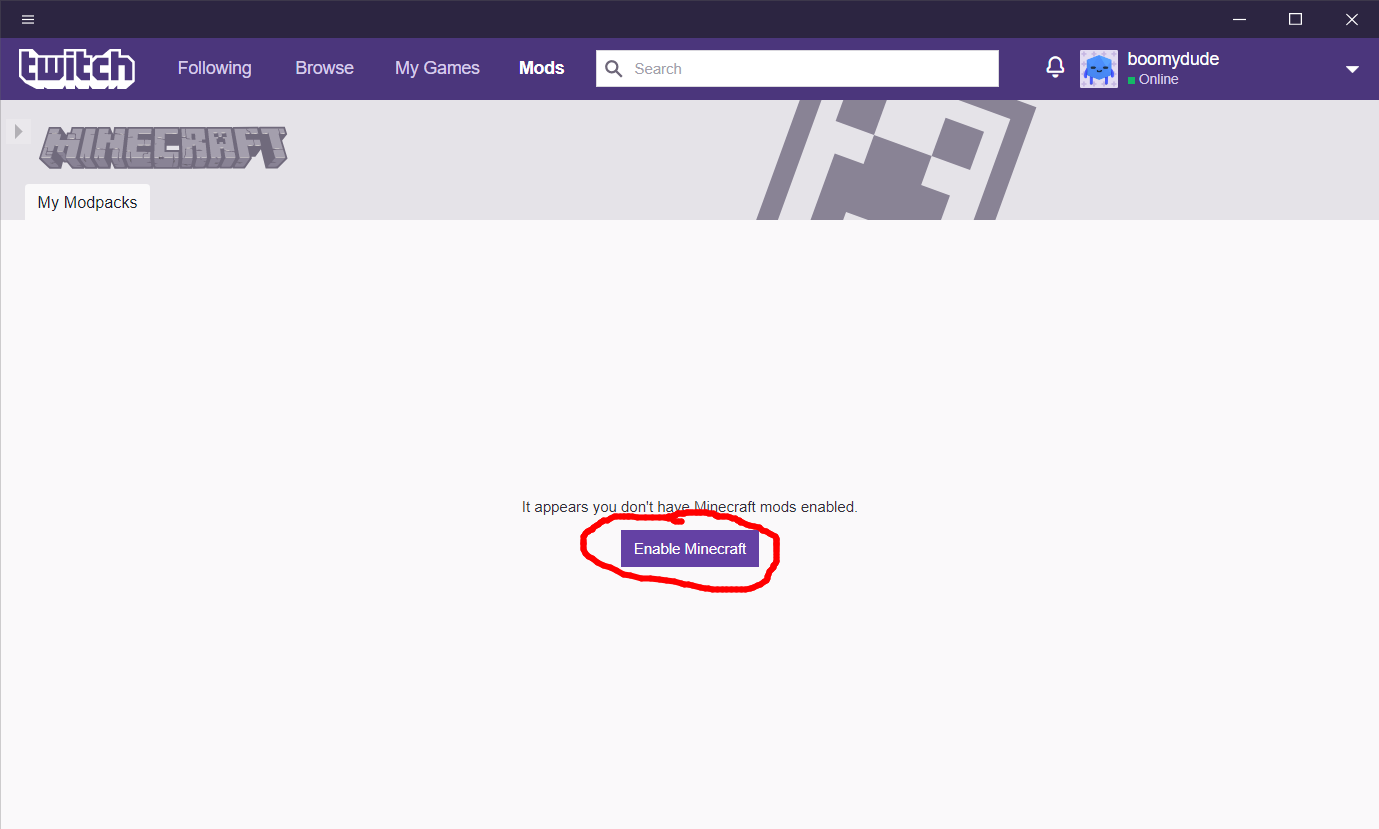
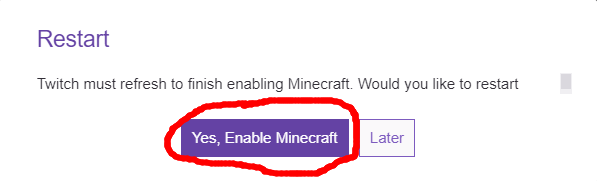
Go ahead and enable Minecraft.
Restart Twitch when it asks you to.
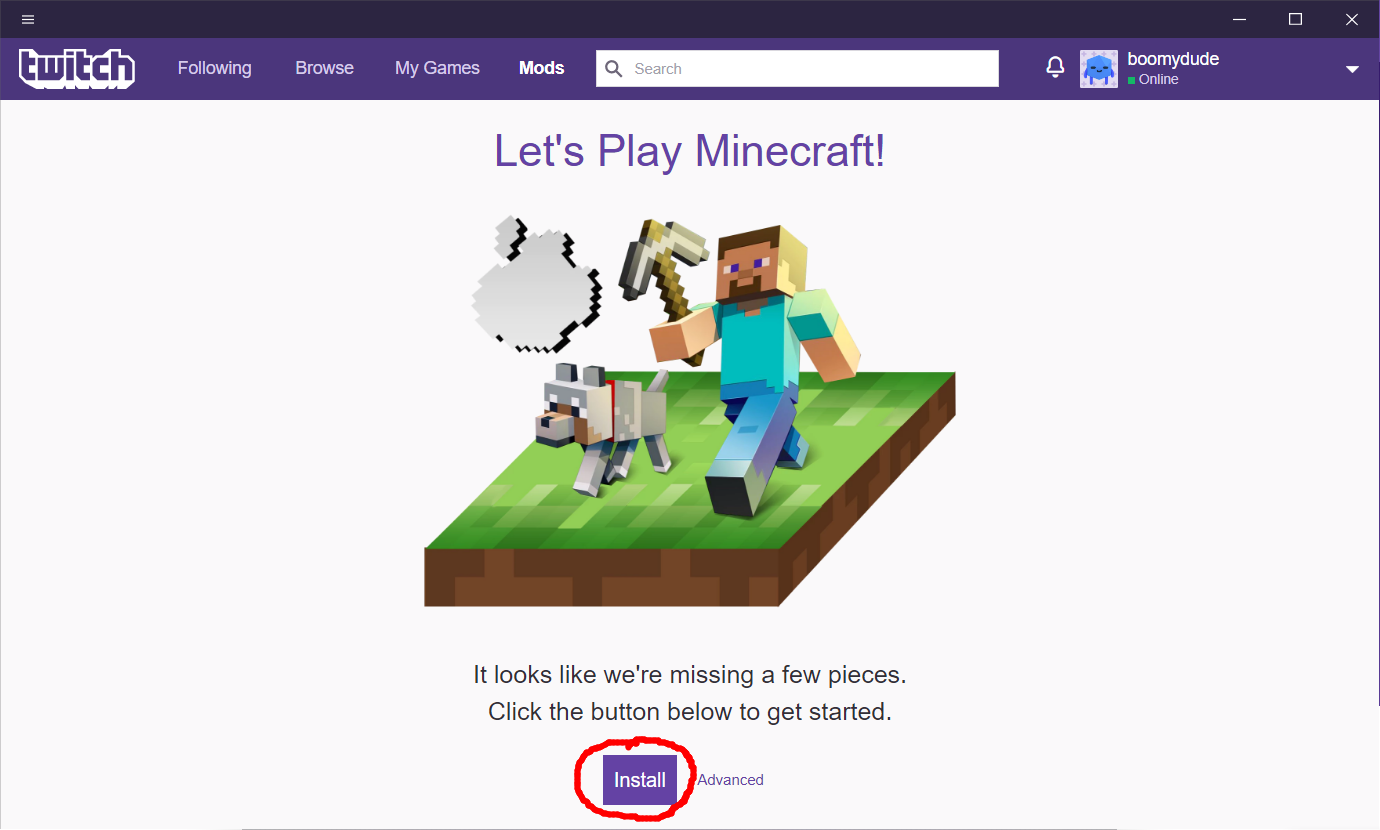
Install the "missing pieces" of Minecraft when prompted.
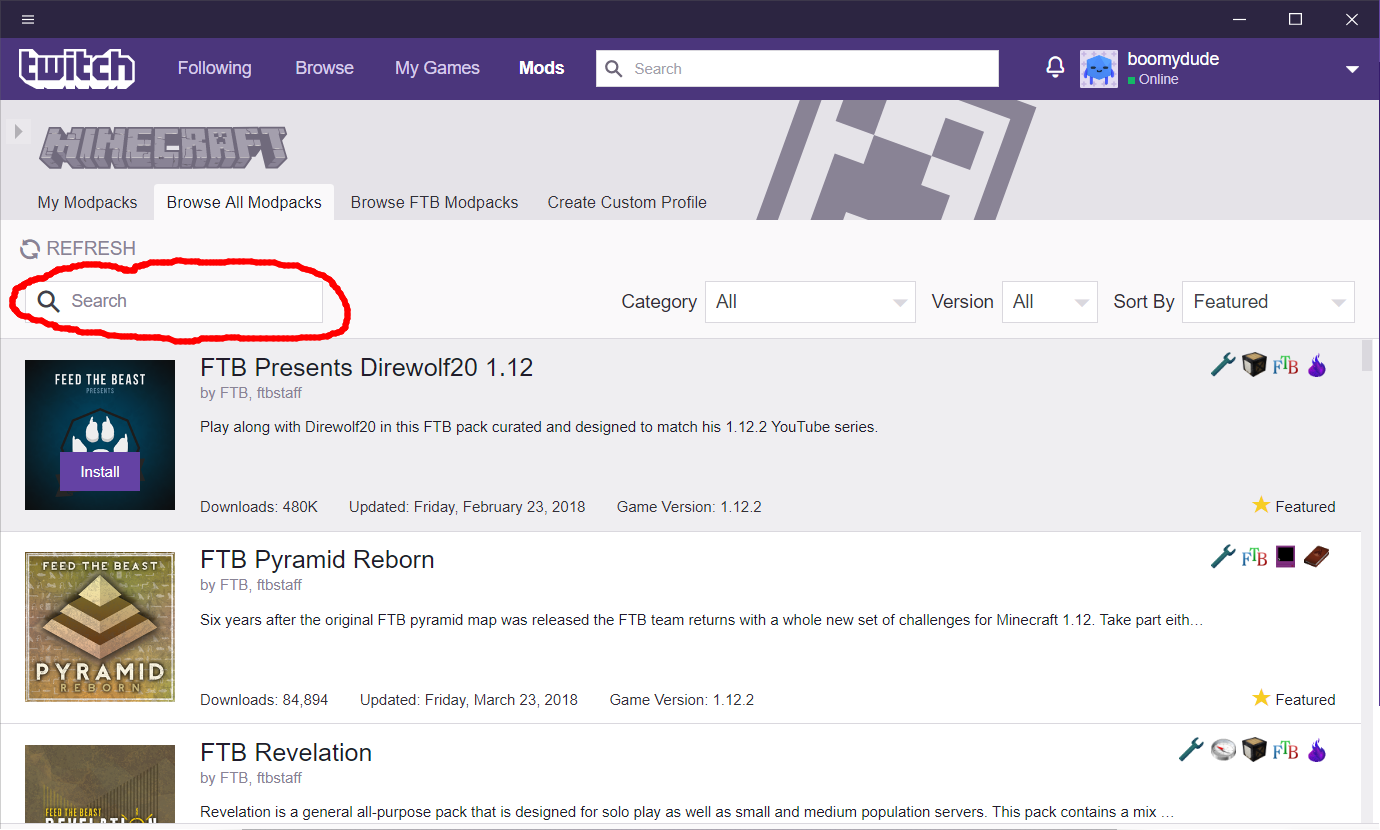
Now we are going to set up SevTech as an example modpack in Twitch.
Type in SevTech into the search box that I have marked in red.
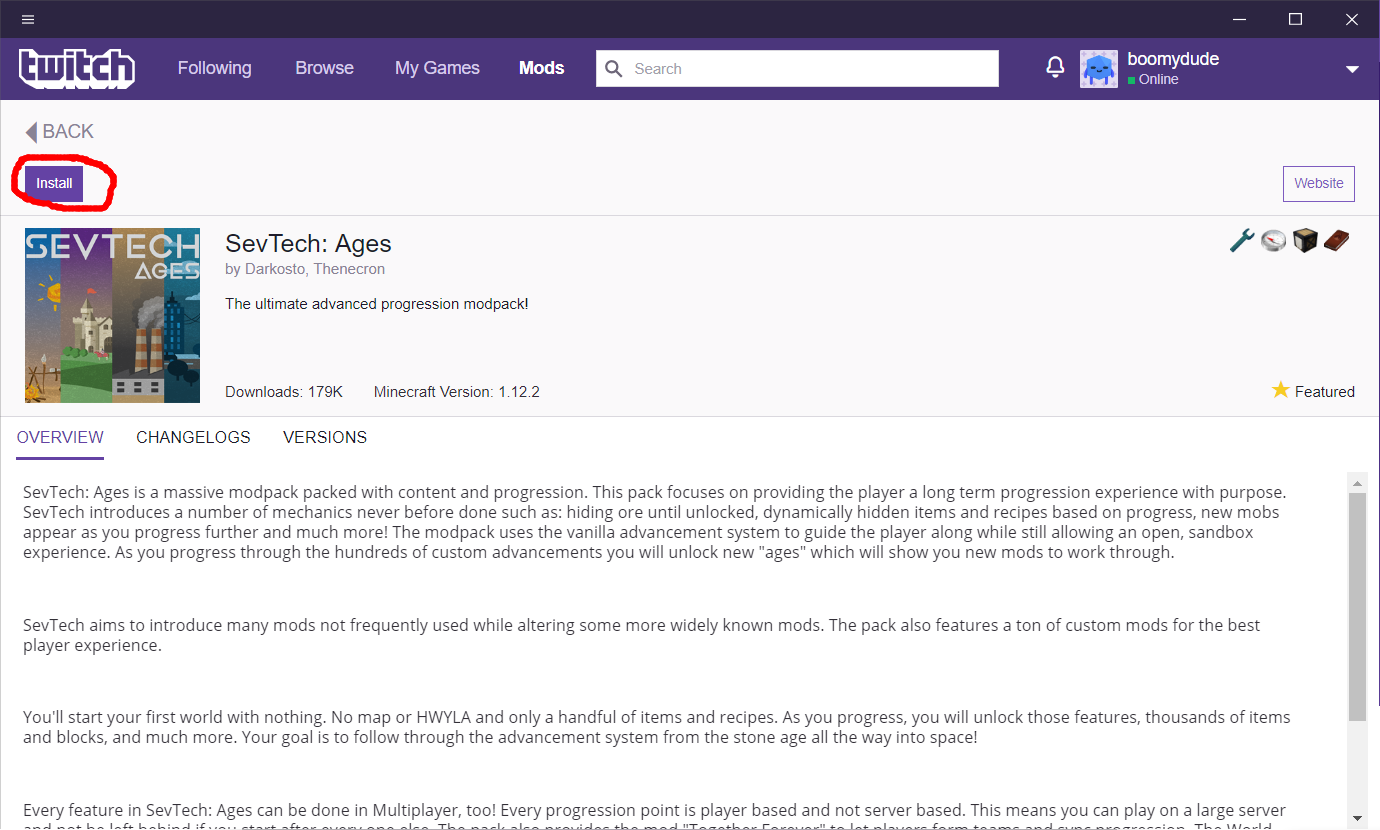
Go ahead and click on SevTech: Ages when it appears.
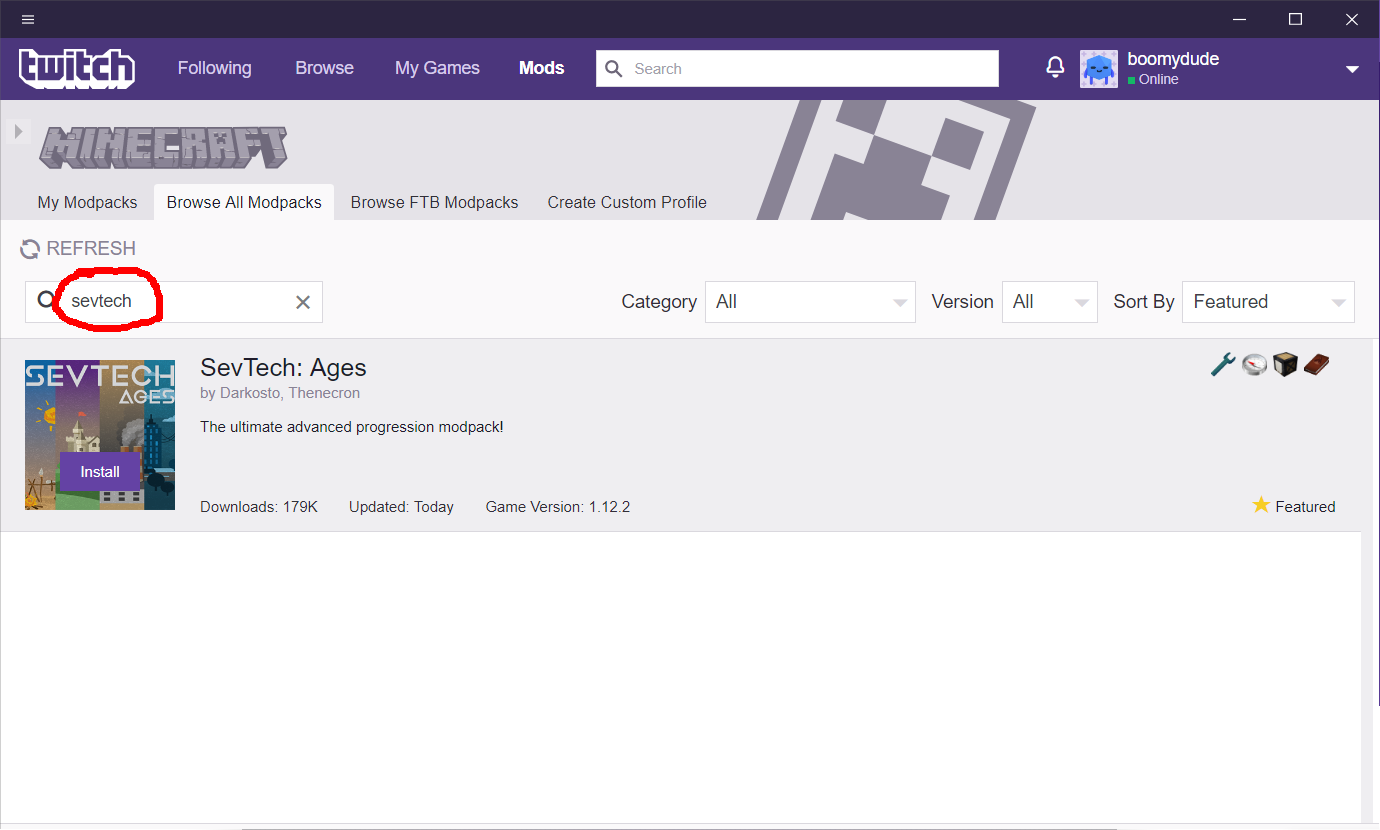
Click the install button.
The play button should be where the install button was.
Before we play, however, we need check that the version is correct.
If it seems obvious to you how to check the version then go ahead to the step after the next one.
Otherwise, click on the "mods" button and "Minecraft" again.
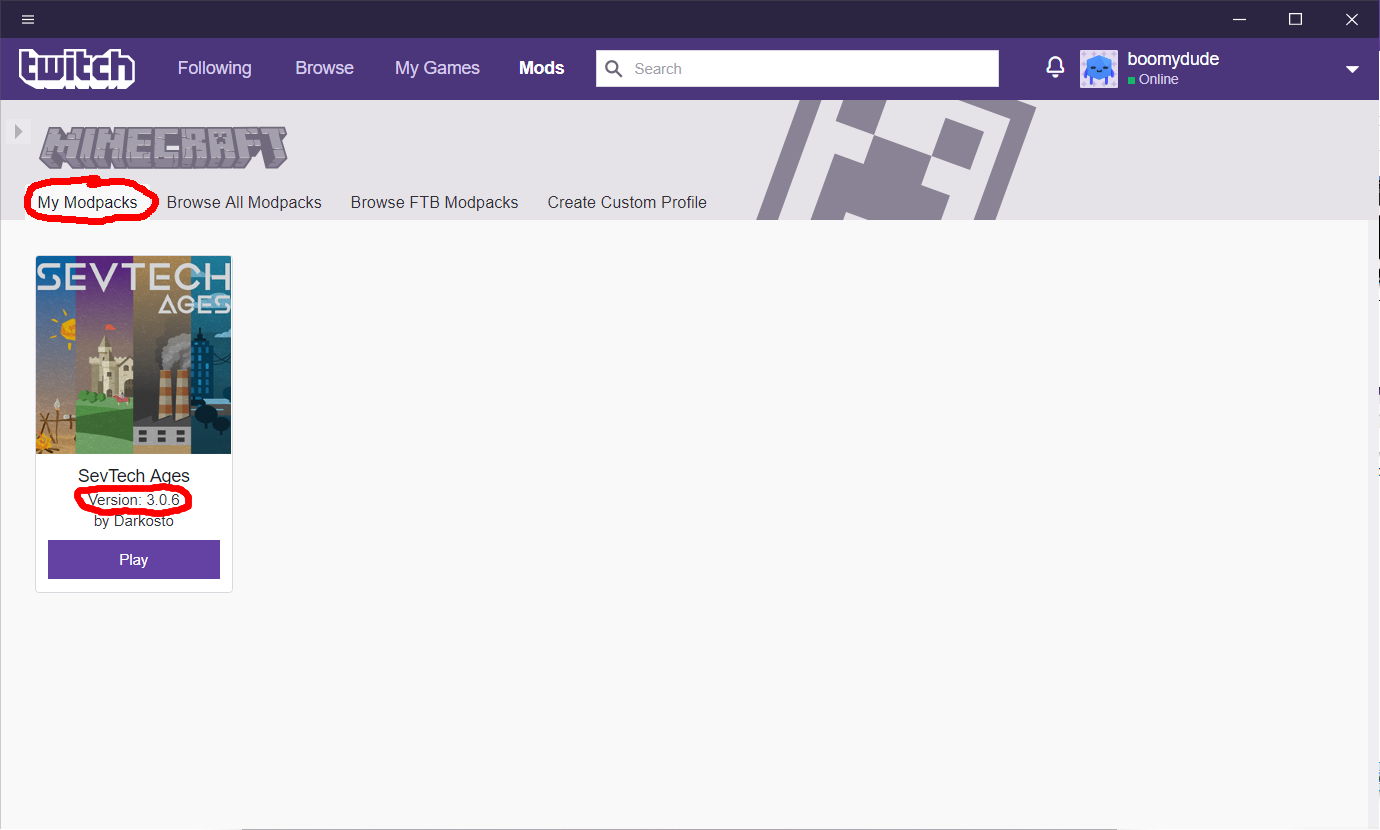
This time, and all subsequent times of using Twitch, "Sevtech: Ages" should appear in "My Modpacks."
Check the version number of SevTech and verify that it matches the server version posted on the about page of the server.
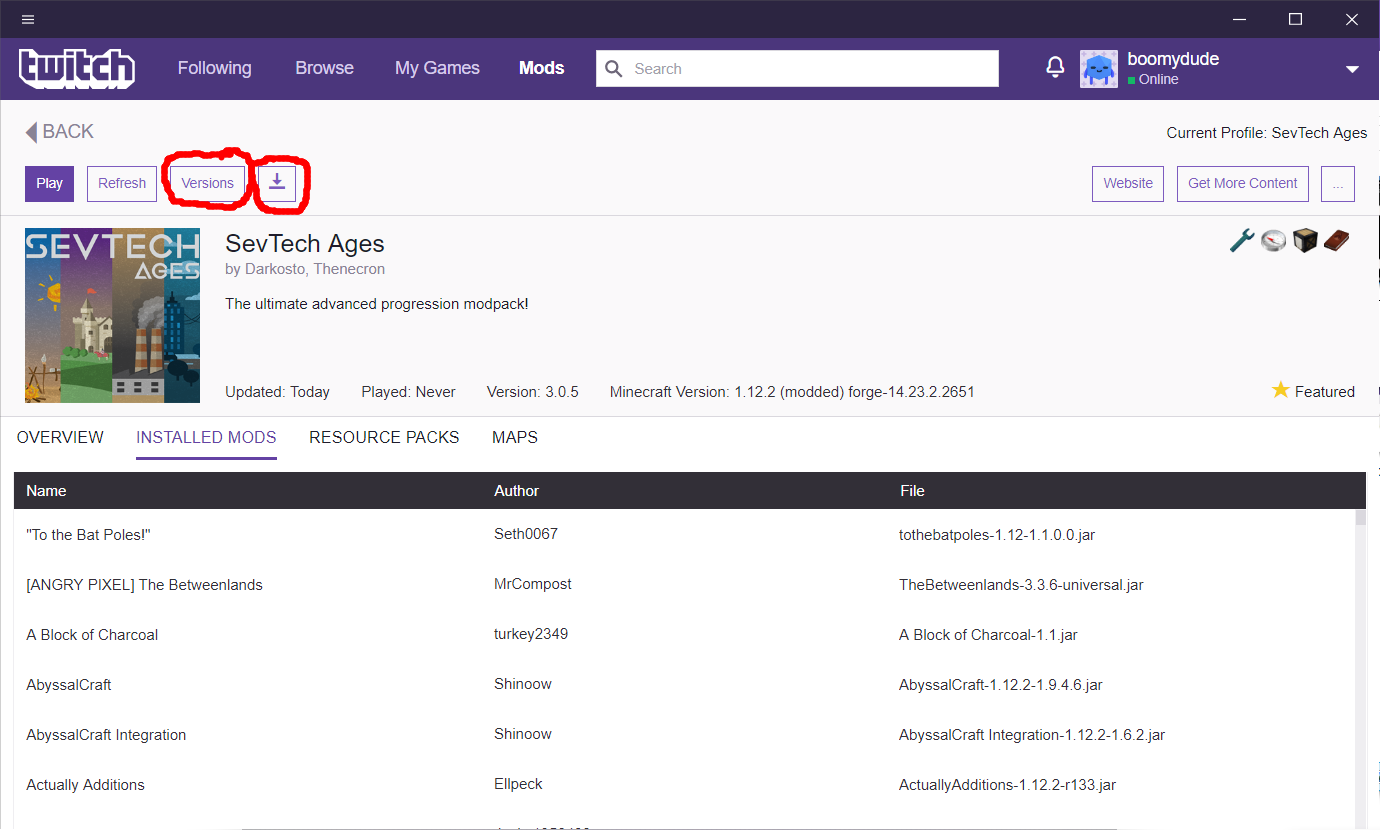
To change version numbers, click SevTech from the "My Modpacks" screen; then click on "Versions."
Or you can click on the little box with down arrow.
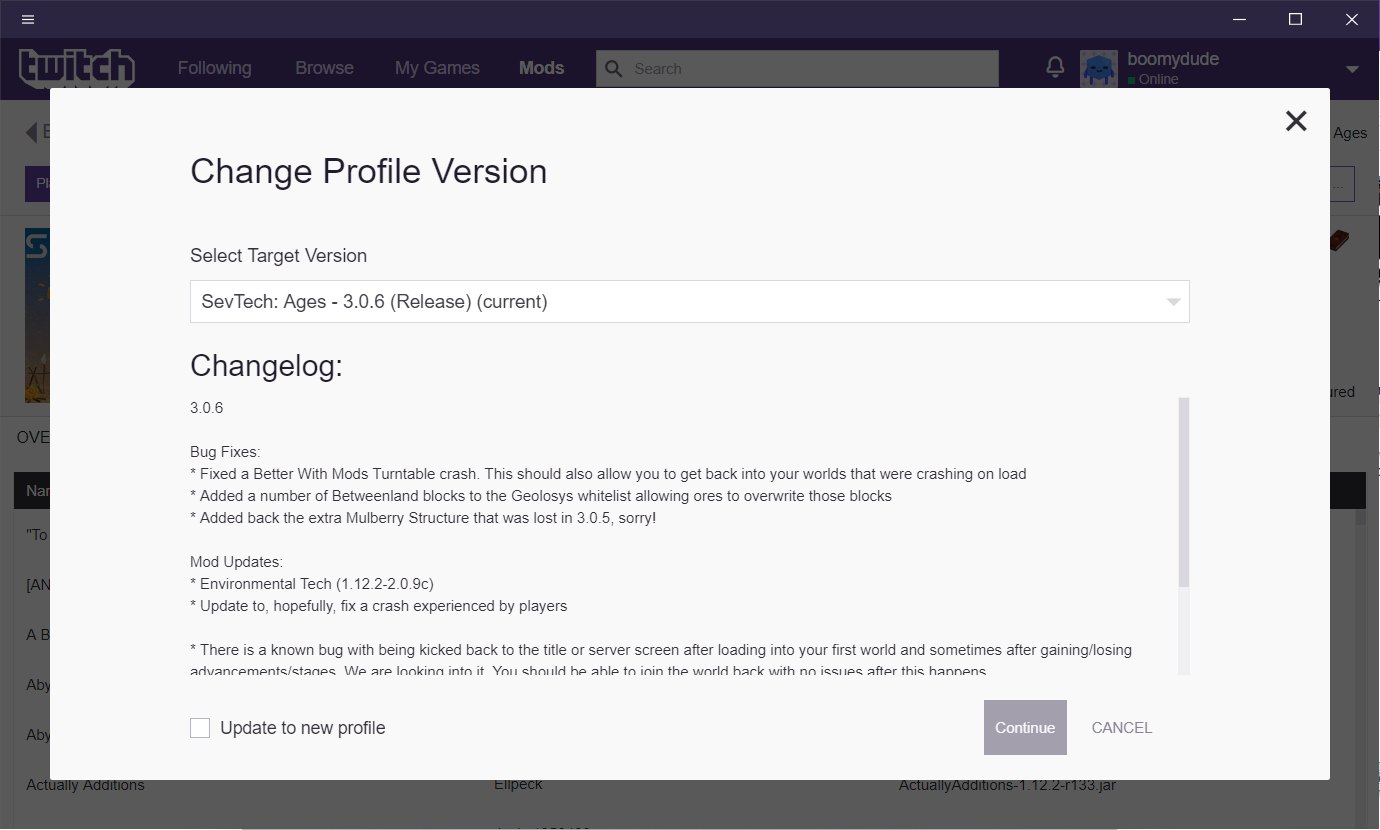
There is no need to enable "Update to a new profile."
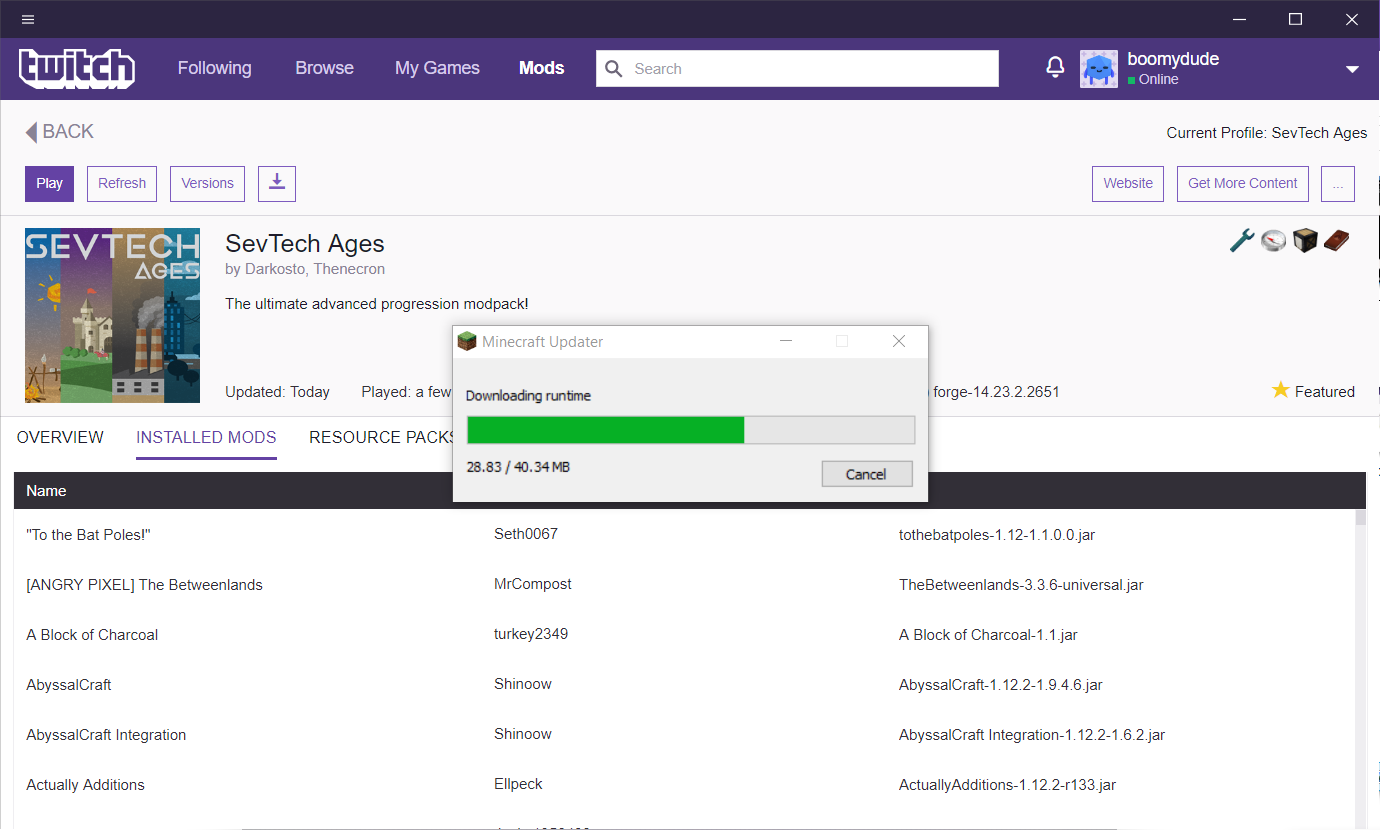
We are not out of the woods yet lol. Now we are going to launch SevTech for the first time.
Go ahead and click "Play". It may grab a few files while launching.
The minecraft launcher should appear. Go ahead and login.
If this is your first time with this modpack, click the up arrow to the right of "Play" and select the SevTech Ages profile!
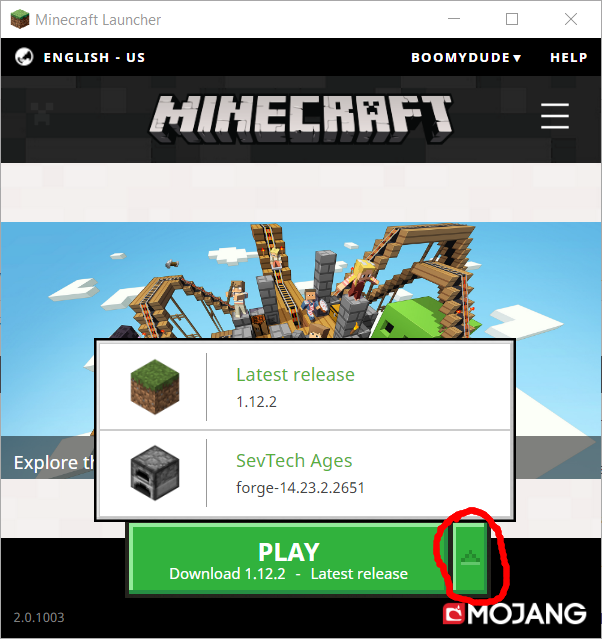
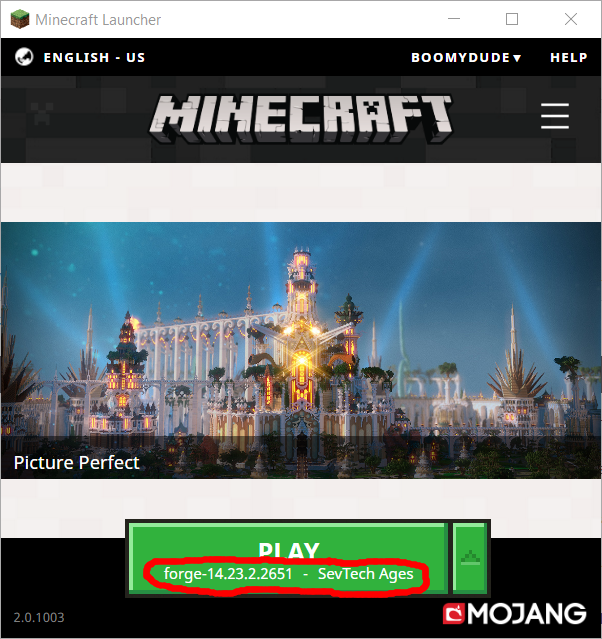
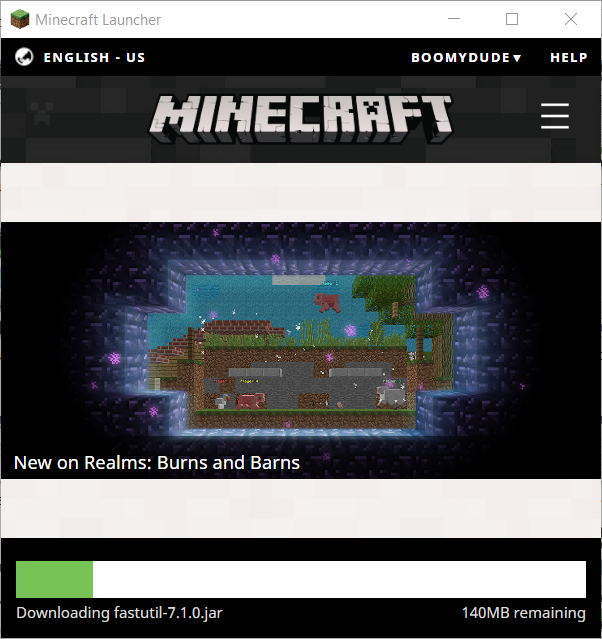
If this is your first time with this pack, it may try once again to download some more files.
With any luck, the modpack loading screen should appear.
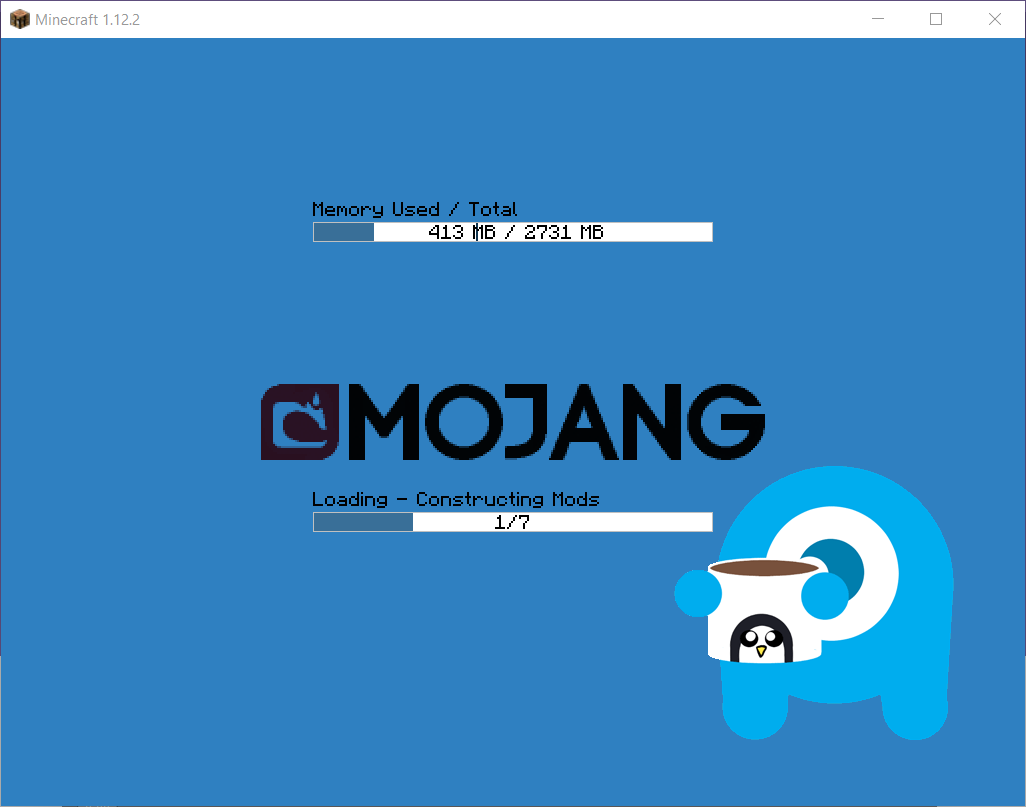
After a few minutes, the mod pack should be loaded and ready. You're Done!